As developers, we spend a massive amount of effort keeping our hands on the home row. We use terminal-based editors, shell aliases, and keyboard shortcuts to navigate our environment efficiently.
Yet, when we encounter multilingual documentation, the standard translation workflow is clunky: reach for the mouse, select text, right-click, and wait. This constant context switching breaks your flow state.
In Your AI Translator, we designed a mouseless translation workflow built specifically for keyboard-driven power users.
Note: Some advanced workflows and features described in this article (such as Word Hint Mode) require a Pro subscription or an active trial.
1. Zero-Click Hover Translation
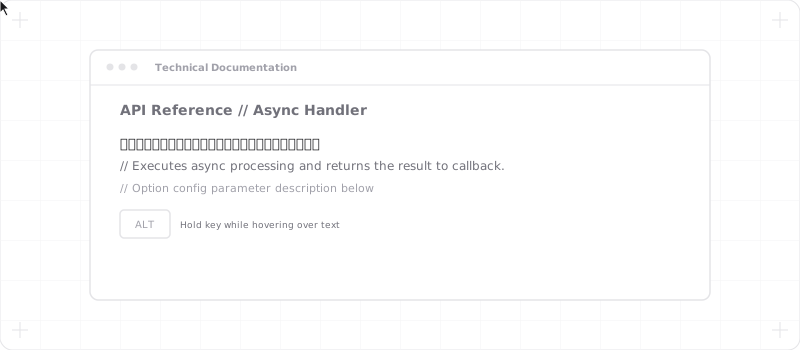
Highlighting text is a slow operation. To bypass this, you can use our Hover Translation feature:
- Place your cursor over any text block.
- Press and hold your configured modifier key (e.g.,
CtrlorAlt). - The extension instantly translates the block and displays the translation inline directly below the source text in a light, low-contrast font (weak style) to preserve reading flow.
No selecting, no clicking. Just hover and read.
2. Keyboard-Only Navigation (Word Hint Mode)
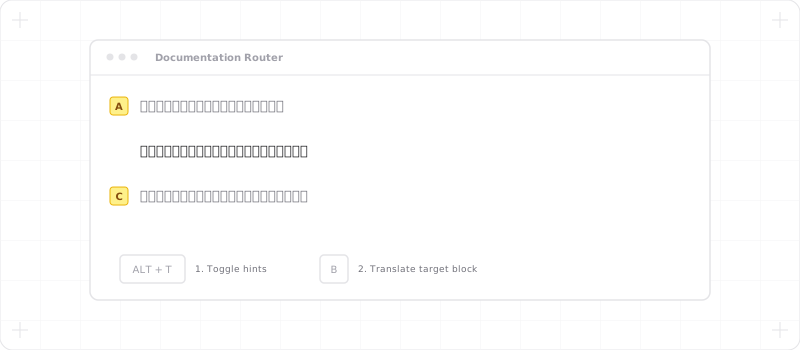
For a truly mouse-free experience, you can activate Word Hint Mode via a global shortcut (which you can freely configure in your browser’s extension shortcuts, for example mapping it to Alt + Shift + W). Similar to browser keyboard navigation tools, this feature overlays high-contrast letter tags above text blocks. Simply type the letter sequence to trigger translation.
We’ve optimized this mode with developer-friendly capabilities:
- Granular Targets: Toggle between words + paragraphs mode for granular translation, or paragraph-only mode for scanning documentation blocks at speed.
- Label Stacking Blocker: When labels overlap or block underlying text, pressing the repeat trigger key combination flips the visual stacking order of labels, revealing hidden characters underneath.
- Editor Bypass: Hotkeys and shortcuts automatically bypass input elements, textareas, and active text boxes, ensuring you never accidentally trigger commands while typing.
3. Fast Prompt Swapping
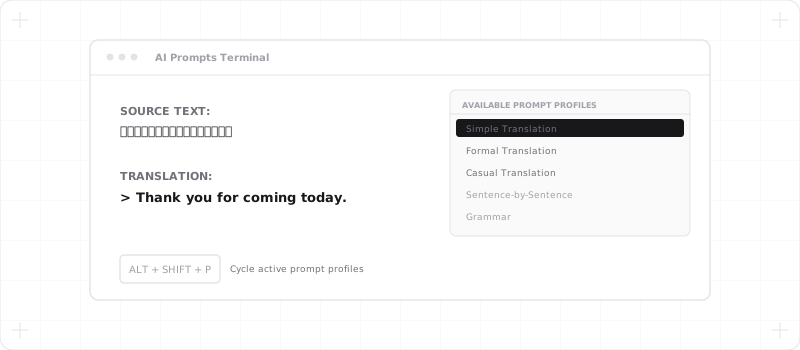
Not all translations are the same. Instead of navigating settings menus, you can save custom prompt configurations to your library and map them to global extension hotkeys (such as Alt + Shift + P).
This lets you swap your active translation behavior on-the-fly depending on your context:
- Simple Translation: Translate input directly without metadata.
- Formal Translation: Rigorous, polite academic/professional style.
- Casual Translation: Idiomatically natural, conversational localizations.
- Sentence-by-Sentence: Parallel translation mapping.
- Grammar: Detailed grammatical breakdowns.
4. On-the-Fly Model Swaps
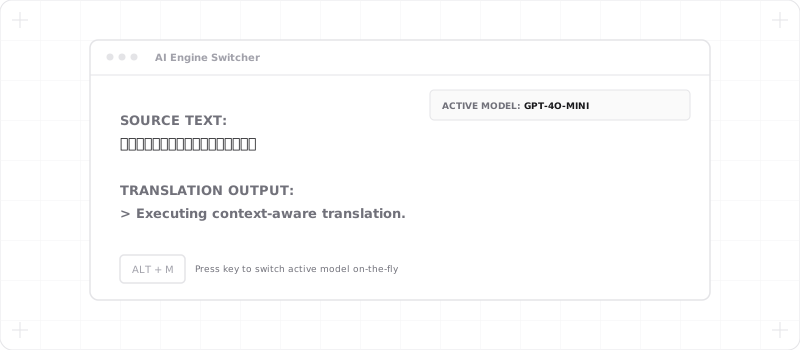
You can configure quick-switch hotkeys to swap your active AI engine or target language without opening the extension’s UI. Jump from a fast, cost-efficient model to a highly advanced reasoning model with a single key press.
Pro Developer Workflow
By mapping these shortcuts together, you can read foreign documentation at raw terminal speeds:
- Open documentation, press your configured hotkey (e.g.
Alt + T) to trigger hints. - Scan the page, press the letters for the paragraph you want.
- Read the translation. If you need details on a specific programming term, press your prompt hotkey (e.g.
Alt + Shift + P) to switch to the Grammar prompt, and tap the hint again. - Press
Escto close all active translations and return to standard reading.
By combining zero-selection hover translation, visual label stacking toggles, and instant prompt shortcuts, reading multilingual technical documents becomes a natural extension of your developer environment.