When reading documentation, researching complex technical topics, or debugging code on GitHub, you constantly encounter paragraphs, error traces, or architecture diagrams that trigger follow-up questions.
The traditional workflow is fragmented and slow: select the text, copy it, switch to a ChatGPT or Claude tab, paste the context, frame your question, wait for the response, and switch back to your original tab. This continuous tab-hopping creates friction, fragments your screen real estate, and breaks your flow state.
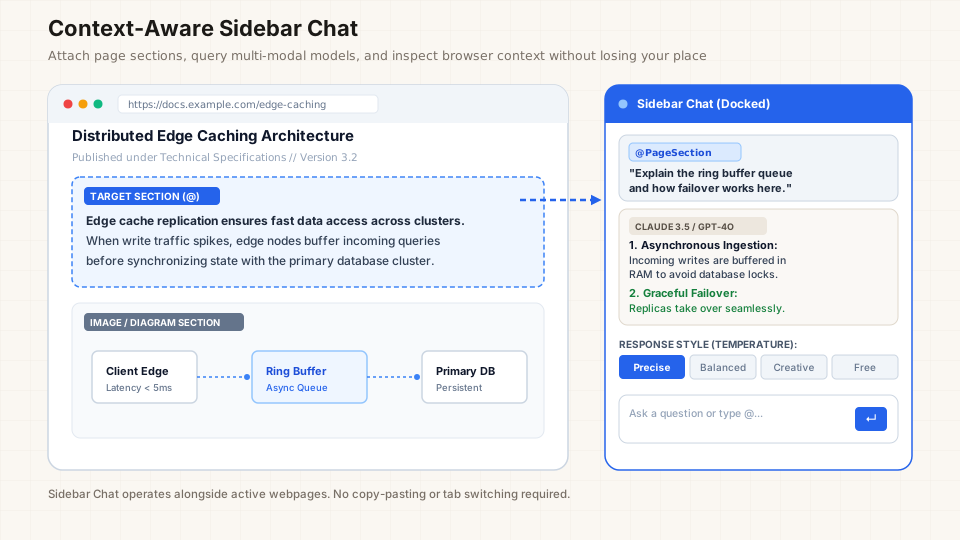
With Your AI Translator, we designed a persistent, context-aware Sidebar Chat panel. The sidebar docks alongside your active webpage, letting you attach specific page sections, feed diagrams and screenshots to multi-modal vision models, and query AI engines using custom response styles—all without leaving your reading position.
Note: Advanced workflows described in this guide (such as the Sidebar Chat panel and visual element attachment tools) require an active trial or Pro subscription.
1. The Problem with Tab-Hopping AI Tools
Switching tabs to query an AI model may seem trivial, but cognitive science shows that minor task interruptions derail deep focus. In developer and researcher workflows, context switching incurs three distinct penalties:
- Lost Visual Anchor: Switching away from a complex API specification or academic paper forces your brain to re-scan the page to relocate your reading position upon return.
- Context Bleed and Truncation: Copy-pasting text manually often strips away relevant visual structure, such as tables, code indentation, or adjacent footnotes, resulting in incomplete or misleading AI answers.
- Screen Clutter: Tiling separate browser windows or split screens eats valuable display space, especially on laptops or single-monitor setups.
A dedicated sidebar chat eliminates these trade-offs by turning the active browser tab into an interactive workspace.
2. Zero-Copy Page Context Attachment
Instead of copying and pasting huge blocks of text, Your AI Translator allows you to attach live DOM elements directly into your conversation context with zero clipboard overhead.
How to Attach a Page Section:
- Open the Sidebar: Click the extension sidebar icon or trigger your configured toggle hotkey.
- Trigger Reference Mode: Click the Attach button inside the chat box or type the
@symbol directly into the query input. - Select the Target Section: Choose “Page Section” from the reference menu. As you move your cursor across the webpage, a subtle highlight outlines paragraphs, code blocks, tables, and callouts. Click the element you want to examine.
- Submit Your Query: The element is attached as an isolated reference token (e.g.,
@section:div.highlight-source-ts). Type your question—such as “Why does this function return an undefined promise?” or “Summarize the security implications of this config block”—and pressEnter.
Because references are tokenized, you can attach multiple non-contiguous paragraphs from the same webpage into a single query. The AI receives both your custom question and the exact text content of the selected nodes.
3. Multi-Modal Vision: Querying Diagrams, Tables, and Charts
Technical articles are rarely text-only. They feature database schemas, cloud architecture diagrams, workflow state machines, and benchmark charts. Standard text-only translation engines fail completely when valuable information is trapped inside an image.
When paired with multi-modal models like Claude 3.5 Sonnet, GPT-4o, or Google Gemini 1.5 Pro, Your AI Translator lets you query visual elements directly through the sidebar:
- Invoke the Vision Reference: Type
@in the chat input and select “Visual Section”. - Select Any Visual Container: Click on any diagram, SVG canvas, raster infographic, or complex data table on the page.
- Automatic Element Capture: With your permission, the extension captures a high-resolution render of the selected bounding box and attaches the image payload directly into the chat session.
- Ask Complex Analytical Questions:
- “Explain the failover sequence shown in this architecture diagram.”
- “Convert this visual database schema into a Prisma ORM schema definition.”
- “Extract the numbers from this benchmark chart into a clean CSV format.”
By keeping your API keys securely in your browser’s encrypted vault (learn how our local-first vault protects BYOK credentials), your private queries and screenshots are sent directly to the model provider with zero intermediate proxy logging.
4. Selecting the Optimal Response Style (Temperature Control)
Different research tasks demand different model behaviors. A developer auditing an encryption routine requires strict factual adherence, while a copywriter looking for headline ideas needs creative breadth.
The sidebar chat features a 4-tier Response Style selector that dynamically adjusts the model’s underlying sampling temperature:
| Response Style | Temperature | Best Used For |
|---|---|---|
| Precise | ~0.1 – 0.2 | Troubleshooting code bugs, auditing regex patterns, inspecting API routes, and verifying mathematical proofs. Zero creative liberties. |
| Balanced | ~0.5 | Drafting professional email replies, summarizing research papers, and generating documentation outlines. |
| Creative | ~0.8 | Brainstorming alternative metaphors, rewriting marketing copy, and finding creative synonyms. |
| Free | ~1.0 | Capturing nuance, humorous tone, colloquial idioms, and localized storytelling. |
You can switch response styles between queries within the same conversation thread without reloading the page or resetting your chat history.
5. Practical Everyday Scenarios
Here is how power users integrate the sidebar chat into daily technical workflows:
A. Debugging Stack Traces on GitHub & Stack Overflow
When encountering an obscure build failure, attach the error stack trace from your terminal or CI log web view. Set the response style to Precise and ask:
“What root exception triggers this error, and what configuration change in
tsconfig.jsonfixes it?”
B. Understanding Heavy Academic Papers & RFCs
When reviewing an RFC with complex specifications, attach the definition section and ask:
“Explain this algorithm in simple terms using a concrete TypeScript code example.”
C. Translating Idiomatic Content with Custom Prompts
If you need translated text delivered with specialized domain constraints, pair the sidebar with your saved custom prompt profiles. Read our comprehensive guide on how to write better AI translation prompts to see how custom system prompts keep technical jargon intact.
6. Keyboard Shortcuts for Frictionless Navigation
To maintain a truly mouseless workflow (see our developer keyboard guide), the sidebar chat supports full keyboard interaction:
Alt + Shift + C(configurable): Toggle the sidebar chat open or closed.Esc: Close the active reference selector or collapse the sidebar when finished.Tab / Shift + Tab: Cycle focus between the query input, attached tokens, and response actions.Ctrl + Enter(orCmd + Enteron macOS): Send the query immediately.
Summary
The goal of Your AI Translator is not just to replace isolated words, but to transform your browser into an intelligent, interactive research environment. By combining zero-copy DOM attachments, multi-modal diagram analysis, and granular temperature controls, the Sidebar Chat empowers you to understand any webpage faster without ever losing your context.
Install Your AI Translator from the Chrome Web Store, configure your favorite AI model via BYOK, and experience frictionless browsing today.