

Saving one Facebook photo is straightforward. You click the image, open options, and save it to your computer.
Working through an entire album becomes repetitive when you need to open, save, and organize dozens of items separately. You find yourself clicking through photos one by one, waiting for overlays to load, and manually renaming generic image files that land in your default download folder.
Facebook Downloader brings scanning, filtering, and a controllable download queue into that workflow. It discovers album items from the page you are viewing, selects high-resolution images, and organizes them into dedicated album folders on your computer.
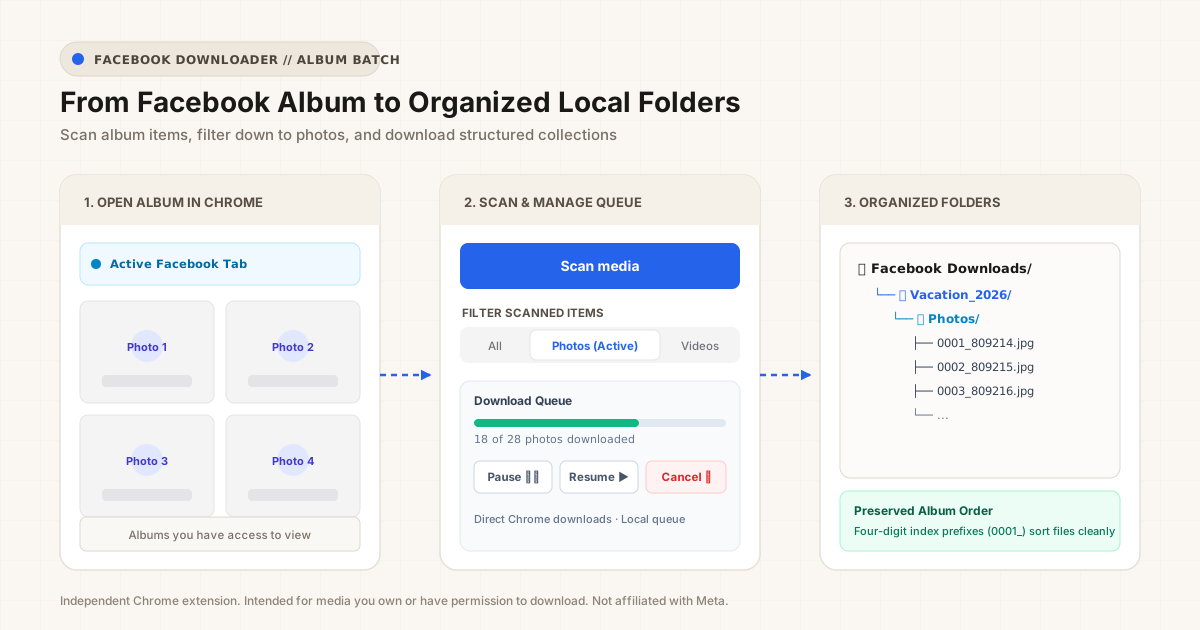
1. Start With an Album You Can Access
Before starting any batch download, confirm that you have permission to view and save the photos. Facebook Downloader operates directly within your active browser tab and is intended for:
- Archiving your own personal photo albums and timeline memories.
- Saving family or community photo collections that you have explicit permission to download.
- Storing project assets or permitted photography portfolios.
The extension respects Facebook’s native security model. It does not bypass login screens, access private groups you do not belong to, or override privacy settings. If an album is visible in your signed-in browser session, the extension can scan its rendered contents.
2. Scan the Album Before Downloading
To begin, navigate to the Facebook album, photo tab, or profile media grid you want to download.
Step 1: Install the Extension
Install Facebook Downloader from the Chrome Web Store.
Step 2: Trigger the Media Scan
Open the Facebook Downloader popup or overlay and click Scan media:
- Incremental Auto-Scroll: The extension scrolls down the rendered page to discover loaded media containers.
- ID Collection: As each item comes into view, the extension registers its unique media identifier (
id). - Position Restoration: Once scrolling completes, the extension restores your initial scroll position so you can continue browsing.
Selecting Better Resolution Sources
Facebook often displays scaled-down thumbnails on album grid views. During the scan, the extension evaluates candidate image sources across Facebook’s CDN network in a background tab, comparing natural image dimensions to pick higher-resolution sources before queuing downloads.
Note: The scan discovers what Facebook renders in your active session. For large albums, allow the page a moment to load all items before starting your batch download.
3. Filter the Results to Photos
After scanning finishes, the extension displays the count of discovered media items.
An album page may sometimes contain mixed media, such as short video clips alongside standard photographs. Facebook Downloader provides a simple filter bar:
- All: Displays every media item detected on the page.
- Photos: Limits the list exclusively to still images (JPEG, PNG, WEBP).
- Videos: Filters for standalone video items.
Selecting the Photos filter isolates your photography items instantly without requiring a re-scan.
4. Start a Batch and Control the Queue
Once your photos are filtered, click Download
Queue Controls: Pause, Resume, and Cancel
Downloading many high-resolution images all at once can crowd your connection. Facebook Downloader processes items sequentially and gives you full control over the queue:
- Pause ❚❚: Temporarily halts the queue if you need bandwidth for other browser tasks.
- Resume ▶: Continues downloading from where the queue was paused.
- Cancel ✖: Stops the remaining downloads and clears the active job list.
Sequential processing helps avoid connection timeouts and keeps browser downloads orderly.
5. Find Your Files in Organized Folders
One of the main frustrations with manual saving is ending up with generic filenames scattered across your default Downloads directory.
Facebook Downloader creates a structured local folder hierarchy automatically:
Downloads/
└── Facebook Downloads/
    └── <Album_or_Source_Name>/
        └── Photos/
            ├── 0001_809214.jpg
            ├── 0002_809215.jpg
            ├── 0003_809216.jpg
            └── ...
Why This Organization Matters
- Dedicated folder structure: Files are grouped into
Facebook Downloads/<Source_Name>/Photos/(orVideos/for video items). - Four-digit index prefix (
0001_,0002_): Preserves the original album viewing order on your file system. - Unique Facebook media ID (
_809214): Prevents file naming collisions if you download multiple batches from the same source.
6. What Changes When You Download a Video?
While Facebook Downloader is primarily built for batch photo archiving, it also includes support for certain video downloads.
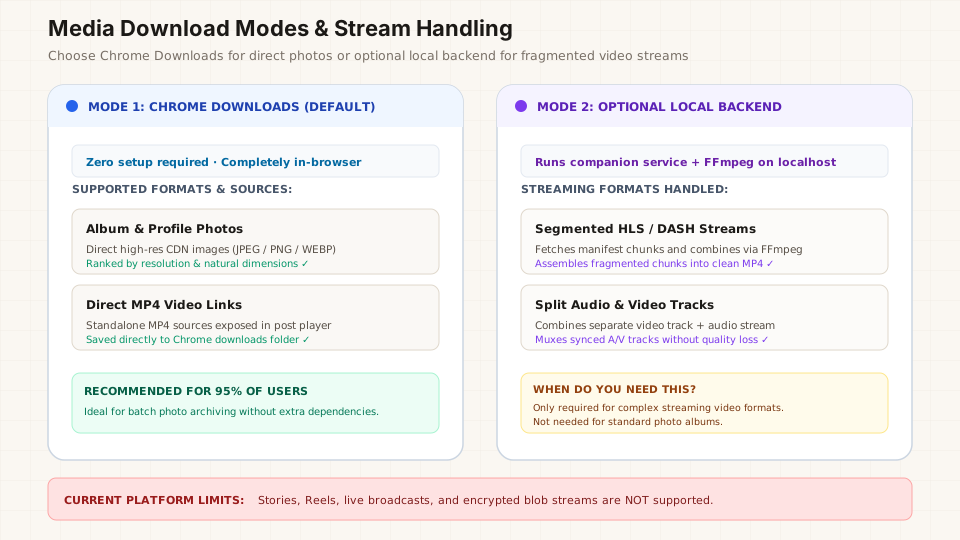
Mode 1: Built-in Chrome Downloads (Direct MP4)
For standard Facebook video posts where a direct MP4 stream URL is exposed, the extension downloads the video directly through Chrome’s native download manager into Facebook Downloads/<Source_Name>/Videos/. This requires zero external tools or command-line setup.
Mode 2: Optional Local Backend (Fragmented Streams)
Some modern Facebook videos use adaptive streaming formats such as HLS or DASH, where audio and video are delivered in separate, segmented chunks.
For those media sources, an optional companion local backend running on your machine can receive the stream manifest from the extension, download the segments, and assemble them into a standard MP4 file using FFmpeg.
Current Media Limits
To keep expectations clear, certain Facebook media formats are not supported:
- Stories: Ephemeral story formats are not captured.
- Reels: Short-form Reels feeds are outside the album scope.
- Live Streams: Real-time broadcasts cannot be downloaded while live.
- Encrypted Blob Feeds: Video feeds protected by DRM or internal browser blob players cannot be extracted.
7. Choose an Account Export When You Need a Full Backup
It is important to distinguish between selective media downloading and a complete account backup.
Facebook Downloader is designed for everyday workflow tasks: saving a vacation album, collecting project reference photos, or keeping an offline copy of an album you just shared.
If your goal is to download every photo, message, post, and comment across your entire account history for permanent archiving, use Meta’s official tool:
👉 Meta Download Your Information
Meta’s official export service compiles your complete account archive into downloadable ZIP files directly from Meta’s servers. Use Meta’s export for full account migrations, and use Facebook Downloader when you want to save specific albums quickly as you browse.
8. What to Check When a Download Fails
If an item fails to download during a batch run, check these common items:
- Private or restricted post: If the author changes privacy settings or deletes a photo while your queue is running, the CDN link may expire.
- Intermittent CDN timeout: High-resolution image servers can occasionally drop a request. Click Resume or re-download the individual failed item.
- Browser download permission: Ensure Chrome has permission to save multiple files to your disk. If prompted, select “Allow automatic downloads”.
- Local disk space: Large albums containing dozens of high-res photos can require several hundred megabytes. Check that your download drive has sufficient room.
9. Keep Your Photo Collections Organized
Batch photo downloading does not have to mean repetitive right-clicking or sorting through disorganized download folders.
With Facebook Downloader, you can scan an album, filter down to the photos you want, and let a managed queue assemble your collection into clean, numbered folders.
Interested in learning more? Read the full feature breakdown on the Facebook Downloader product page or install the extension from the Chrome Web Store.