Most translation and AI tools focus entirely on the reading experience. But what happens when you need to reply to a GitHub issue in English, draft an email to a foreign client, or chat with international teammates on Slack?
The standard process is tedious: open a new tab, go to ChatGPT or DeepL, type your message, copy the result, go back to your original tab, and paste it.
With Your AI Translator, we eliminated this context switch. The extension isn’t just a reading tool—it is a powerful Inline Writing Assistant that works natively inside most common text areas on the web.
Note: Some advanced workflows and features described in this article (such as the Inline Writing Assistant) require a Pro subscription or an active trial.
1. How Inline Trigger Keys Work
Instead of clicking buttons or opening a side panel, you can invoke AI assistance directly from your keyboard as you type. We built a lightweight input listener that watches for specific trigger commands followed by a terminating semicolon (;).
The syntax is simple:
/trigger_key <your content>;
As soon as you type the closing semicolon ;, the extension detects the trigger block, calls the AI to process the inner content, and displays a clean helper popup with the AI’s response right next to your text cursor.
Keyboard Controls:
- Insert: Press
TaborEnterto automatically replace the typed command block with the AI’s translation/response. - Dismiss: Press
Escto close the helper popup and leave the original text unchanged. - Retry: Click the retry icon inside the popup to regenerate the response if it doesn’t match your intent.
Important: Configurable Shortcuts & Prompts These triggers (like
/t,/a, and/e) are not hardcoded syntax. They are fully customizable shortcuts mapped directly to your personal Prompt Library. You can edit the command tokens (e.g. changing/tto/trans) and custom system prompts in the extension settings to match your workflow.
2. Translate on the Fly: /t <text_to_translate>;
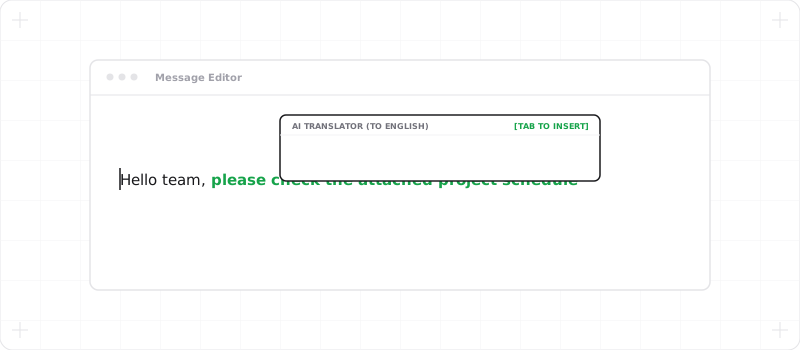
If you are a non-native speaker writing in English to an international team, the /t (Translate) trigger is a lifesaver. When you are typing in English and hit a phrase you only know in your native language (e.g., Japanese), you can write it directly inside the /t block. The extension translates it to English, displays it in a popup, and replaces the block with the English translation when accepted.
Example workflow:
- You are typing a Slack message in English, but you want to say ‘Please check the attached project schedule’ and only know the Japanese phrasing (
添付のプロジェクトスケジュールをご確認ください). - You type: Hello team, /t 添付のプロジェクトスケジュールをご確認ください;
- The moment you type the
;, a popup instantly appears above your cursor showing the English translation: please check the attached project schedule. - Press
TaborEnterto insert the English translation. - The command block is replaced, and your final sentence is perfectly in English: Hello team, please check the attached project schedule.
3. Ask the AI Directly: /a <prompt>;
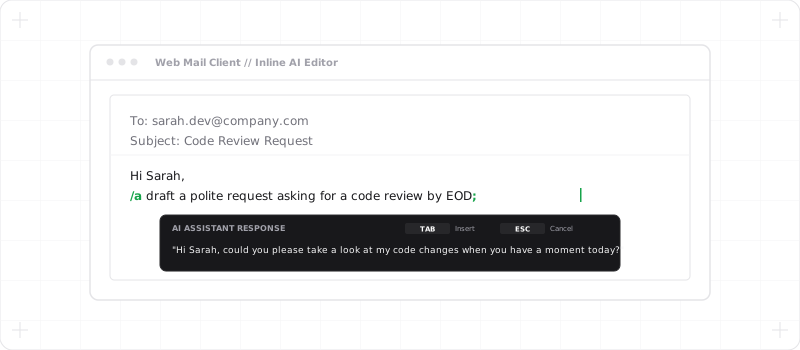
Need to write a formal request, generate a quick reply, or ask a question without switching tabs? Use the /a (Ask) trigger to prompt the AI directly from the input field.
Example workflow:
- You are writing an email to a teammate.
- You type: Hi Sarah, /a draft a polite request asking for a code review by the end of the day;
- The moment you type the
;, the assistant displays a polite, professionally formatted request in the popup. - Press
Tabto insert it directly into your email body.
If you need to ask more complex follow-up questions about a web page section or analyze visual layouts, you can toggle our Context-Aware Sidebar Chat to chat side-by-side with your active browser tab.
4. Explain Difficult Concepts: /e <concept>;
When writing technical documentation or reviewing code, you might need a quick definition of a term. The /e (Explain) trigger prompts the AI to explain the term inside the block.
Example workflow:
- You are writing a pull request description.
- You type: This PR updates the database interface to use /e REST API;
- The moment you type the
;, a popup displays a concise explanation of REST API to help you verify your context.
Editor Compatibility & Constraints
Because this runs as a secure browser extension, the inline writing assistant works in most common rich text editors and input fields (such as Gmail, GitHub comments, Slack web, Jira, and Reddit).
However, some complex web editors (such as closed Google Docs canvas editors or iframe-based textareas with strict DOM sandboxing) may limit editor updates. In those environments, the helper popup will still show the response, which you can quickly copy manually.
By combining seamless reading workflows with cursor-anchored helper popups, Your AI Translator greatly simplifies the language barrier from both sides of the conversation.