Traditional translation engines are fundamentally static. They translate sentences by finding the most probable statistical equivalents. While this works well for conversational text, it fails spectacularly when faced with specialized technical terminology.
For example, translating a sentence about a “thread-safe runtime environment” often results in a confusing, literal translation that ruins the original meaning. For a developer, it is far easier to read the text when these technical concepts remain in English.
Because Your AI Translator allows you to leverage AI models with custom system prompts, you can program the translator to adapt to your specific domain.
1. The Developer Prompt
The goal of this prompt is to translate explanatory text while leaving programming syntax, variable names, and core engineering jargon untouched.
Example Prompt Focus:
“Translate the text, but do NOT translate programming jargon, library names, or API endpoints. Keep terms like ‘callback’, ‘thread-safe’, and ‘garbage collection’ in English. Keep code blocks exact.”
By instructing the AI to respect technical jargon, the resulting translation is much more readable and accurate for a software engineer.
2. The Academic Prompt
Scientific papers demand a formal, objective, and precise tone. You also need citations and mathematical notations to remain completely unchanged.
Example Prompt Focus:
“Maintain a rigorous, formal, and objective academic tone. Keep mathematical formulas, variable symbols, and citation brackets exactly as they are in the source text.”
This ensures that complex research papers retain their structural integrity while being localized into your native language.
3. The Natural Localization Prompt
When reading casual blogs or opinion pieces, literal translation ruins the author’s voice. You want to translate the intent and replace foreign metaphors with equivalent local idioms.
Example Prompt Focus:
“Translate colloquially and dynamically. Replace idioms and cultural metaphors with natural equivalents. Keep the tone friendly and engaging.”
This transforms robotic, literal translations into natural, flowing text that reads as if it were originally written in your language.
4. Fine-Tuning Output: Response Styles
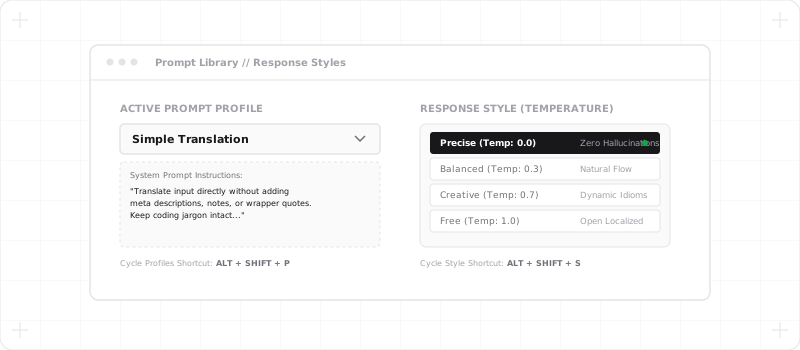
Beyond the system prompt, Your AI Translator gives you control over the model’s Response Style, which maps directly to the model’s “temperature” parameter. You can select from 4 levels depending on the level of precision you need. These same response styles are also available in our Context-Aware Sidebar Chat, letting you adjust temperature settings on-the-fly while querying page selections or images.
- Precise: Best for source code comments, configuration files, and API docs. This mode enforces strict, repeatable translations with zero creative liberties.
- Balanced: The default mode. Delivers clear, professional phrasing suitable for standard articles, emails, and documentation.
- Creative: Ideal for blog posts and personal newsletters. This mode lets the AI draft more natural, fluid sentences.
- Free: Best for marketing copy, colloquial chats, and idioms where capturing the tone and context is far more important than word-for-word translation.
Mapping Prompts to Hotkeys
Having great system prompts and response styles is only useful if you can swap them instantly. In Your AI Translator, you can save these configurations in your profile library and map them to global extension hotkeys (such as Alt + Shift + S for styles or Alt + Shift + P for profiles).
This allows you to change the translation model’s behavior instantly depending on whether you are auditing source code, studying a research paper, or reading a tech newsletter.